

- Published at
The No-Code Memory Bank: Automating Your Daily Standup with Mem0 CLI
Table of Contents
- Why This Is a Retrieval Problem, Not Just a Note-Taking Problem
- What We Are Building
- Prerequisites
- Step 1: Install Mem0 CLI
- Step 2: Initialize the CLI
- Step 3: Understand how Mem0 Stores Memories
- Step 4: Decide What a Work Memory Looks Like
- Step 5: Log Updates Throughout the Day
- Step 6: Query Your Memory Bank
- Step 7: Generate a Standup Report
- How the Metadata Filter Works
- Why This Is Better than a Plain Text File
- Keeping the Memory Bank Clean
- Wrapping Up
AI applications are getting better at reasoning over large amounts of context, but context is not the same thing as memory.
A model can respond well to the information you give it in the current session. The harder problem is continuity: remembering useful facts, preferences, decisions, and past interactions across sessions. Without that, every interaction starts from almost the same place, and the application has to be reminded of things it should already know.
There are different ways to approach this. Some applications keep conversation history in a database and summarize it over time. Others use vector databases to retrieve relevant past messages. Some frameworks include their own memory abstractions, and some teams build custom retrieval pipelines around their specific product needs.
For this project, we’ll use Mem0. Mem0 is built as a memory layer for AI applications and agents, and its CLI gives us a terminal-native way to add, search, list, update, and delete memories. The CLI is available through both npm and pip (the two implementations expose the same commands, options, and output formats).
In this tutorial, we’ll build a small project with Mem0 CLI to see how persistent memory works in practice.
The project is a terminal-based memory bank for daily standups. As we work, we’ll log small updates from the command line: things we finished, things we are working on, and things that are blocked. Later, we’ll retrieve those memories and turn them into a standup report we can paste into Slack or use in a meeting.
This is intentionally simple. No web app. No SDK integration. No backend setup. Just Mem0 CLI, a few shell helpers, and a small script that turns saved memories into a useful report.
I am calling this “no-code” in the practical sense, not the literal one. We are not building an application around Mem0’s SDK. We are using the CLI as the main interface and adding a small shell script for automation.
Why This Is a Retrieval Problem, Not Just a Note-Taking Problem
A standup usually answers three questions:
- What did I finish?
- What am I working on next?
- What is blocked?
The problem is not the format. The problem is recall.
If you wait until the next morning to summarize everything, you are depending on your memory of a day that was probably split across terminals, browser tabs, code review, meetings, and random interruptions. You could write everything in a notes file, but then you still have to scan through those notes and decide what belongs in the standup.
A better approach is to capture small factual updates when they happen, then retrieve the useful ones later.
That is where Mem0 helps. We can store each work update as a memory, attach metadata such as bucket, project, ticket, and day, and then retrieve only the memories that match the standup report we want to generate.
In other words, we are not just saving notes. We are creating a small memory system that can bring back the right context when we need it.
What We Are Building
We are going to create a terminal-based “memory bank” for daily work.
The flow is simple:
- Install and authenticate Mem0 CLI
- Log updates during the day
- Store workflow metadata such as
bucket,project,ticket, andday - Generate a standup report from the saved memories
The important design choice is that we will not rely on the stored memory text staying exactly the same as the text we entered. We also will not rely on Mem0’s displayed categories to decide whether something is done, doing, or blocker.
Instead, we will use top-level metadata fields for filtering. The memory text will hold the human-readable update, while metadata will tell our script which standup bucket and workday the memory belongs to.
Prerequisites
You need:
- a Mem0 account and API key
- a Unix-like shell
jqinstalled- either Node.js or Python for installing the CLI
If you are just trying this out, Mem0’s current Hobby plan is enough for a personal workflow. At the time of writing, it is free and includes 10,000 add requests per month and 1,000 retrieval requests per month.
Step 1: Install Mem0 CLI
Install it with npm:
npm install -g @mem0/cliOr with pip:
pip install mem0-cliStep 2: Initialize the CLI
Run:
mem0 initThe CLI setup wizard prompts for your API key and a default user ID, validates the connection, and saves the config locally.
You can also set credentials through environment variables:
export MEM0_API_KEY="m0-xxx"
export MEM0_USER_ID="your-user-id"
Environment variables take precedence over values in the config file.
To confirm everything is working:
mem0 statusThat checks your API connection and shows the current project.
┌ Connection Status ──────────────────┐
│                                     │
│     ● Connected                     │
│     Backend:  platform              │
│     API URL:  https://api.mem0.ai   │
│     Latency:  0.92s                 │
│                                     │
└─────────────────────────────────────┘
Step 3: Understand how Mem0 Stores Memories
Before we start logging work, let’s understand how Mem0 works.
Mem0 does not behave like a plain text file.
By default, Mem0 runs your input through an inference pipeline. The docs describe this as an LLM-powered process that extracts key facts, resolves conflicts, and stores the resulting memories. With infer=True, which is the default, Mem0 may paraphrase, consolidate, or restructure the memory before storing it.
That is a feature, not a bug. It is part of what makes Mem0 different from grepping a markdown file.
But it affects how we design our standup workflow.
A brittle approach would be to add a memory like this:
[2026-05-11] [done] [billing-api] [BILL-142] Finished webhook retry logicThen later filter by checking whether the stored memory still starts with [2026-05-11].
That may work sometimes, but it is not a safe assumption. Mem0 might store the memory as something like:
Finished webhook retry logic for the billing API ticket BILL-142 on May 11, 2026.The meaning is preserved, but the exact prefix is gone.
So in this tutorial, we will treat the memory text as human-readable content, not as the source of truth for filtering. For filtering, we will use top-level metadata fields such as bucket and day, which tell our script which standup section and workday each memory belongs to.
Step 4: Decide What a Work Memory Looks Like
For this workflow, I want the logging step to be as frictionless as possible.
A daily standup has three buckets:
- done
- doing
- blocker
It might seem natural to store done, doing, and blocker as Mem0 categories, but those labels are specific to our standup workflow.
Mem0 categories are better understood as semantic classifications of the memory itself. For example, a work update might be categorized as professional_details, even if we want to place it under done, doing, or blocker in our report.
So for this project, we will store the standup bucket as metadata instead. The memory can still have whatever category Mem0 assigns to it, while our bucket metadata field tells the report script where that memory belongs.
Each memory will include these metadata fields:
bucketprojectticketday
The bucket field tells us whether the memory belongs under done, doing, or blocker. The day field lets us retrieve memories by logical workday instead of relying only on when Mem0 created the memory.
This gives us a simple rule:
Use the memory text for the human-readable update. Use metadata for workflow-specific filtering.
The CLI supports custom metadata on mem0 add, and Mem0’s advanced filters can match top-level metadata fields. That is why we store bucket, project, ticket, and day as top-level metadata keys instead of putting them inside a nested object.
Step 5: Log Updates Throughout the Day
You can add memories manually with mem0 add, but shell helpers make this feel much more natural.
This script assumes you already configured a default user during mem0 init, so the helper does not pass --user-id. The CLI will use the default user from your Mem0 config.
Add this to your ~/.bashrc or ~/.zshrc:
work_log() {
  local bucket="$1"
  local project="$2"
  local ticket="$3"
  shift 3
  local text="$*"
  local day="${WORK_DAY:-$(date +%F)}"

  local metadata
  metadata="$(
    jq -nc \
      --arg bucket "$bucket" \
      --arg project "$project" \
      --arg ticket "$ticket" \
      --arg day "$day" \
      '{
        bucket: $bucket,
        project: $project,
        ticket: $ticket,
        day: $day
      }'
  )"

  mem0 add "$text" \
    --metadata "$metadata"
}

done_note() {
  work_log done "$@"
}

doing_note() {
  work_log doing "$@"
}

blocker_note() {
  work_log blocker "$@"
}
The helper takes the first argument as the standup bucket, the next two arguments as the project and ticket, and everything after that as the memory text. It then builds a metadata object with bucket, project, ticket, and day, and passes that metadata to mem0 add. The day value defaults to today’s date, but you can override it by setting WORK_DAY before running the helper. Later, the report script will use the bucket and day metadata fields to retrieve the right memories for each section of the standup report.
Reload your shell:
source ~/.bashrcIf you use Zsh, run:
source ~/.zshrcNow logging updates becomes very low-friction:
done_note billing-api BILL-142 "Finished webhook retry logic and tested the failure path"
doing_note internal-tools OPS-19 "Working on deploy dashboard filters"
blocker_note checkout-web WEB-88 "Waiting on product sign-off for final copy"
That is really the whole trick. Do not wait until the end of the day to remember your work. Capture it while it is still fresh.
Each command stores the update as a Mem0 memory and attaches metadata that looks like this:
{
  "bucket": "done",
  "project": "billing-api",
  "ticket": "BILL-142",
  "day": "2026-05-11"
}
At this point, it helps to visualize how the workflow fits together.
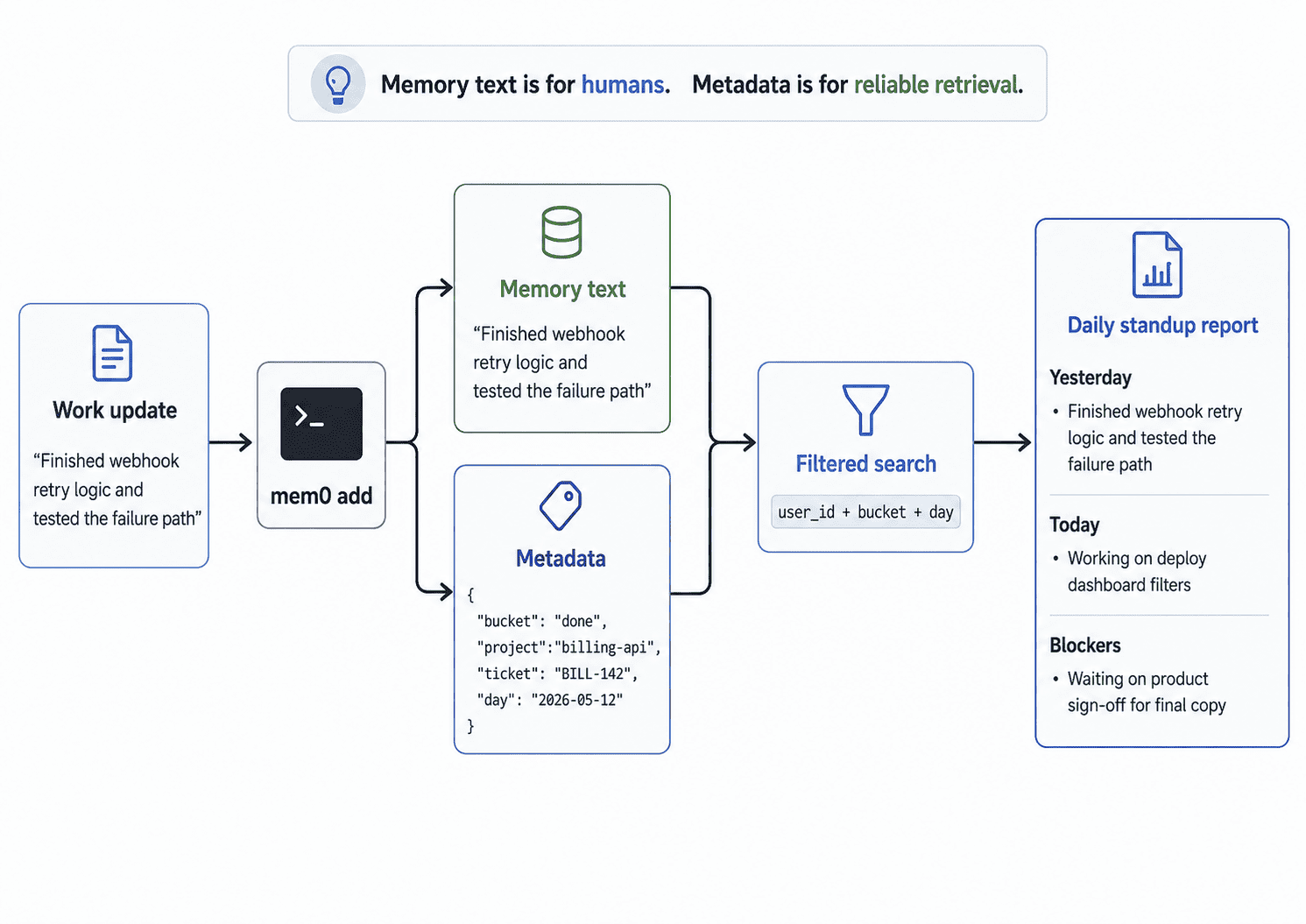
The main idea is that the memory text stays readable for humans, while the metadata gives us a reliable way to retrieve the right memories later.
Step 6: Query Your Memory Bank
Before automating the report, it helps to understand the difference between plain semantic search and filtered retrieval.
You can search your memory bank in plain English:
mem0 search "What did I finish today?"But this is semantic retrieval, not strict workflow grouping.
For example, if you have three work memories from today, Mem0 may return all three even when you ask about finished work:
Found 3 memories:

  1. User is waiting for product sign‑off on the final copy
     Score: 0.20 · ID: c833bec5 · Created: 2026-05-11 · Category: professional_details

  2. User completed the webhook retry logic implementation and successfully tested the failure path
     Score: 0.15 · ID: be88e5b2 · Created: 2026-05-11 · Category: professional_details

  3. User is working on deploy dashboard filters
     Score: 0.13 · ID: 6d706ca1 · Created: 2026-05-11 · Category: professional_details

  3 results · user_id=echessa · 1.84s
That does not mean Mem0 thinks all three memories are completed work. It means all three memories are semantically related to a standup-style work query.
For the standup report, we need stricter retrieval. We want only memories where:
metadata.bucketisdonemetadata.dayis today’s workday
Here is a filtered search for finished work:
DAY="$(date +%F)"
USER_ID="$(mem0 config get user_id)"

FILTER="$(
  jq -nc \
    --arg user_id "$USER_ID" \
    --arg bucket "done" \
    --arg day "$DAY" \
    '{
      AND: [
        { user_id: $user_id },
        { metadata: { bucket: $bucket } },
        { metadata: { day: $day } }
      ]
    }'
)"

mem0 search "completed work for my standup" \
  --filter "$FILTER"
This reads the default user ID from the Mem0 config you created during mem0 init. The CLI can use the default user configured during mem0 init for simple commands. However, Mem0’s filter validator requires filtered searches to include a positive entity scope inside the filter JSON itself. That is why this filter includes { user_id: $user_id } in the AND array.
This example uses DAY="$(date +%F)", so it filters for memories whose day metadata is today’s date. If you are testing with memories from a previous day, set the date explicitly, for example DAY="2026-05-10".
On running the command, we get back the memory for completed tasks.
Found 1 memories:

  1. User completed the webhook retry logic implementation and successfully tested the failure path
     Score: 0.22 · ID: be88e5b2 · Created: 2026-05-11 · Category: professional_details

  1 result · user_id=echessa · 3.03s
For in-progress work:
DAY="$(date +%F)"
USER_ID="$(mem0 config get user_id)"

FILTER="$(
  jq -nc \
    --arg user_id "$USER_ID" \
    --arg bucket "doing" \
    --arg day "$DAY" \
    '{
      AND: [
        { user_id: $user_id },
        { metadata: { bucket: $bucket } },
        { metadata: { day: $day } }
      ]
    }'
)"

mem0 search "current work and in-progress tasks for my standup" \
  --filter "$FILTER"
Found 1 memories:
1. User is working on deploy dashboard filters
Score: 0.18 · ID: 6d706ca1 · Created: 2026-05-11 · Category: professional_details
1 result · user_id=echessa · 1.93sFor blockers:
DAY="$(date +%F)"
USER_ID="$(mem0 config get user_id)"

FILTER="$(
  jq -nc \
    --arg user_id "$USER_ID" \
    --arg bucket "blocker" \
    --arg day "$DAY" \
    '{
      AND: [
        { user_id: $user_id },
        { metadata: { bucket: $bucket } },
        { metadata: { day: $day } }
      ]
    }'
)"

mem0 search "blocked work, waiting items, risks, and dependencies for my standup" \
  --filter "$FILTER"
Found 1 memories:
1. User is waiting for product sign‑off on the final copy
Score: 0.37 · ID: c833bec5 · Created: 2026-05-11 · Category: professional_details
1 result · user_id=echessa · 2.10sYou can also list everything you have stored:
mem0 listFor scripting, JSON output is what we want. You can use either raw JSON output:
mem0 search "completed work for my standup" --filter "$FILTER" --output jsonOr agent mode:
mem0 --agent search "completed work for my standup" --filter "$FILTER"The docs say --agent returns a consistent JSON envelope and suppresses human-facing terminal output like spinners, colors, and banners. That makes it a better fit for the standup report script we will write next.
Step 7: Generate a Standup Report
Now for the part that actually makes this useful.
Mem0 can return JSON in slightly different shapes depending on the command and output mode. Agent mode returns a structured JSON envelope, while some raw JSON examples use a nested data.results field.
The script below handles the common shapes defensively, so it can work with .data[], .data.results[], or .results[].
Create a file named standup-report.sh:
#!/usr/bin/env bash
set -euo pipefail

DAY="${1:-$(date +%F)}"
USER_ID="${2:-$(mem0 config get user_id)}"
: "${USER_ID:?Could not read a Mem0 user ID. Run mem0 init or pass a user ID as the second argument.}"
TOP_K="${TOP_K:-50}"

make_filter() {
  local bucket="$1"
  local day="$2"
  local user_id="$3"

  jq -nc \
    --arg user_id "$user_id" \
    --arg bucket "$bucket" \
    --arg day "$day" \
    '{
      AND: [
        { user_id: $user_id },
        { metadata: { bucket: $bucket } },
        { metadata: { day: $day } }
      ]
    }'
}

extract_items() {
  jq -r '
    def rows:
      if (.data | type) == "array" then
        .data
      elif (.data.results? | type) == "array" then
        .data.results
      elif (.results? | type) == "array" then
        .results
      else
        []
      end;

    rows[]
    | "- " + (.memory // .text // .content // "Untitled memory")
  '
}

fetch_bucket() {
  local bucket="$1"
  local query="$2"
  local filter
  local items

  filter="$(make_filter "$bucket" "$DAY" "$USER_ID")"

  items="$(
    mem0 --agent search "$query" \
      --top-k "$TOP_K" \
      --filter "$filter" |
      extract_items
  )"

  if [ -n "$items" ]; then
    printf "%s\n" "$items"
  else
    echo "None"
  fi
}

yesterday_items="$(
  fetch_bucket \
    done \
    "completed work, shipped tasks, fixed bugs, and finished implementation work for my standup"
)"

today_items="$(
  fetch_bucket \
    doing \
    "current work, in-progress tasks, and next priorities for my standup"
)"

blocker_items="$(
  fetch_bucket \
    blocker \
    "blocked work, waiting items, risks, and dependencies for my standup"
)"

cat <<EOF
## Daily Standup ($DAY)

### Yesterday
$yesterday_items

### Today
$today_items

### Blockers
$blocker_items
EOF
Make it executable:
chmod +x standup-report.shRun it:
./standup-report.sh## Daily Standup (2026-05-11)
### Yesterday
- User completed the webhook retry logic implementation and successfully tested the failure path
### Today
- User is working on deploy dashboard filters
### Blockers
- User is waiting for product sign‑off on the final copyFor this tutorial, I created all the memories “today”. In the script, we specify a Yesterday section that really means “completed work for the selected workday”. This is fine for a standup format, but if you want to be more precise, you could rename the heading in the script to Completed.
To generate a report for a specific workday:
./standup-report.sh 2026-05-10By default, the script reports on memories whose metadata.day value is today’s date. If you are generating your standup the next morning, pass the previous workday explicitly, as shown above.
This script avoids the fragile startswith() approach. It does not care whether Mem0 stores the exact original text, paraphrases it, or extracts a cleaner memory. Instead, it retrieves memories by filtering on the workflow metadata we added earlier: bucket and day.
A typical result might look like this:
## Daily Standup (2026-05-10)

### Yesterday

- Finished webhook retry logic and tested the failure path
- Fixed the stale cache bug in admin search

### Today

- Working on deploy dashboard filters

### Blockers

- Waiting on product sign-off for final checkout copy
How the Metadata Filter Works
The report script uses mem0 search with a metadata filter.
Earlier, we stored metadata like this:
{
  "bucket": "done",
  "project": "billing-api",
  "ticket": "BILL-142",
  "day": "2026-05-11"
}
Because bucket and day are stored as top-level metadata fields, we can filter against them directly. That matters because Mem0’s filters support exact matching on top-level metadata keys, not arbitrary nested metadata structures.
For filtered searches, the filter must also include a positive entity scope such as user_id. The bucket and day fields narrow the results within that user’s memories.
For example, this filter retrieves only memories where user_id matches the selected user, bucket is done, and day matches the selected workday:
{
  "AND": [
    { "user_id": "your-user-id" },
    { "metadata": { "bucket": "done" } },
    { "metadata": { "day": "2026-05-11" } }
  ]
}
That is different from plain semantic search.
A plain search like this:
mem0 search "What did I finish today?"may return completed work, in-progress work, and blockers if all of them are semantically related to today’s work. That is useful for exploration, but it is too loose for a standup report.
For the report, we use semantic search and metadata filtering together:
- semantic search helps retrieve relevant memory text
- metadata filtering keeps each section limited to the right workflow bucket and workday
This is also why we store done, doing, and blocker in metadata instead of relying on Mem0’s displayed category. Mem0 may classify the memory as something like professional_details, which is fine. That category describes the memory broadly. Our bucket metadata describes where the memory belongs in this standup workflow.
Why This Is Better than a Plain Text File
You could do a version of this with a markdown file.
The reason Mem0 is preferable is that it gives you retrieval, not just storage.
A text file is fine when you are reading it manually. Mem0 becomes useful when you want to ask questions of your past work in natural language, scope results to a configured user, attach workflow metadata, and later evolve the same workflow into something more agentic.
That is also how Mem0’s memory model works. With inference enabled, it extracts useful facts, resolves conflicts, and stores memories for future retrieval. With filters, you can narrow a memory store by fields like metadata and time ranges.
You are not just grepping a note file. You are retrieving context.
Keeping the Memory Bank Clean
This kind of setup only works if you trust what is in it.
If you log something incorrectly, the CLI supports get, update, and delete.
To inspect recent memories:
mem0 list --output jsonTo inspect a specific memory:
mem0 get <memory-id> --output jsonTo update one:
mem0 update <memory-id> "Waiting on design review for checkout copy, not product sign-off"To delete one:
mem0 delete <memory-id>That is handy when you are testing the workflow and inevitably create a few junk memories on the first pass.
If you want to delete memories in bulk, use a dry run first so you can preview what would be removed before doing anything destructive.
mem0 delete --all --dry-runWrapping Up
In this tutorial, we used Mem0 CLI to build a small terminal-based memory bank for daily standups.
We started by looking at why AI memory is different from simply passing more context into a model. Then we used Mem0 to store work updates as memories, added metadata such as bucket, project, ticket, and day, and used filtered retrieval to generate a standup report from the command line.
The important design decision was to treat the memory text as human-readable content, not as the source of truth for filtering. Since Mem0 may rewrite or extract memories before storing them, we used top-level metadata fields to decide which memories belong under done, doing, and blocker.
This is a small project, but it shows the core idea behind using Mem0 in an AI application: store useful context as memory, retrieve the relevant parts later, and use metadata to keep the workflow predictable.
From here, you could extend the same idea into a Slack bot, a coding assistant, a personal work journal, or any other tool that needs to remember useful context across sessions.